


Smart Printer App & Scanner
4.61.94K Reviews
App Specs
- Version
- 2.2.40
- Updated On
- License
- Free
- Downloads
- 1,000,000+
- Developer
- Appers Ltd
- Categories
- Tools
- Platform
- Android
Screenshots

 Analysis by AppCompare
I like to judge a printing app by the whole trip a document takes: getting it onto a phone, making a useful copy, sending it somewhere, and checking that the result is actually ready to use. That is the promise of Smart Printer App & Scanner, a free tools app from Appers Ltd that brings printing and phone-based scanning into one place. It makes the most sense when you already have a compatible Wi-Fi printer and want a practical route from a file or paper page to a physical or digital copy.
In everyday use, the appeal is less about replacing every document tool on your phone and more about avoiding a few unnecessary transfers. You can start with a file you need to print, or with a paper document you want to capture, then choose the next step based on what you need. That joined-up workflow is useful for household forms, school pages, receipts and occasional work documents, though it still depends on the printer and network behaving as expected.
When a phone becomes the starting point
A common situation is a document arriving on your phone when you are away from a computer. Perhaps a school sends a form, a colleague shares a PDF, or you need a paper copy of a booking confirmation. Instead of forwarding the file to yourself or opening a laptop, you can use a mobile printing app to find a suitable printer and prepare the job from the device already in your hand.
That convenience has a practical boundary: a wireless printer is not the same as any printer. Before relying on the app for an urgent task, I would check that the printer is compatible and available on the same Wi-Fi network. If the printer is switched off, connected to a different network, or out of paper, the phone cannot make the physical part happen. A quick test print before a deadline is a smarter plan than discovering a connection problem at the last moment.
Getting Started with Smart Printer App & Scanner
First things first, setting up the Smart Printer App & Scanner was a breeze. I downloaded it from the app store, and within minutes, I was ready to go. The app comes with a clean, intuitive interface that even my tech-challenged friends could navigate without a hitch. It automatically detects compatible printers around, which saved me the hassle of manual setups. Pretty neat, right?
Features That Stand Out
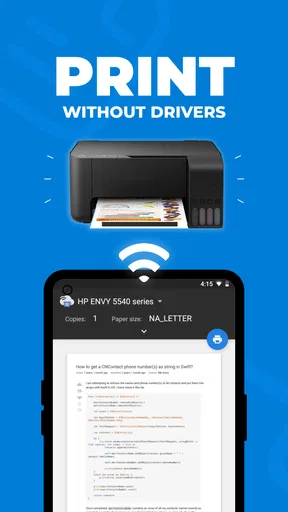
One of the coolest features is the wireless printing capability. Gone are the days of tangled cables and endless configuration woes. I could print directly from my phone with just a tap. Whether it’s a PDF or a photo, the app handles various file types with ease.
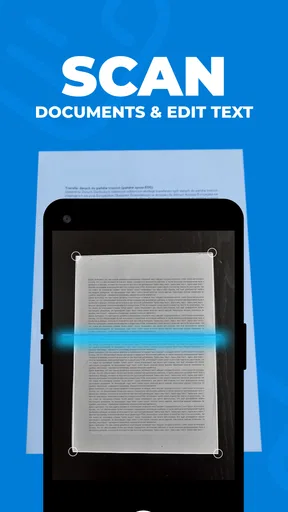
Let’s talk about the scanner feature. You simply point your phone camera at the document, and the app does the rest. It auto-crops and enhances the image so that your scans look crisp and professional. I’ve used it for receipts, IDs, and even some doodles that I wanted to digitize. It’s like carrying a mini scanner in your pocket!
Worth Reading Before You Choose

EA SPORTS FC Mobile 26 Is a Bigger Football Game, but It Takes Time

Flipboard Shows What News Apps Must Do Beyond the Feed

Switching to Android Auto Means Rethinking Your Driving Routine

Google Calendar Makes a Crowded Week Easier to Manage

Ludo King Makes the Most of the Minutes Between Plans

Baby Panda World Brings Quick Play to Modern Phones, but Its Game Library Feels Busy
Choosing the route that fits the document
Printing and scanning solve different problems, so I would decide which one to use before opening a file. If the original is already digital, print it directly rather than making a new scan of a screen or another printout. If the only copy is on paper, scanning first gives you a digital version you can keep or share. That small distinction avoids extra image processing and helps preserve readable text.
For a paper form with several pages, I would work through it in a consistent order and check each capture before moving on. A phone scanner is handy for a quick record, but a page that is tilted, curled, shadowed, or partly outside the frame can be harder to read later. Flat light and a plain surface make a real difference. The automatic crop is a useful starting point, not a substitute for checking the edges and the text yourself.
Everyday handoffs: paper, phone, printer and cloud
A useful home workflow might begin with a school notice on paper. I would scan it while it is in front of me, inspect the crop, and save the result where I can find it again. If another family member needs a paper copy, I can then move from the digital file to printing without having to take another photo or search for the original. The benefit is not just fewer steps; it is having a reusable copy when the paper goes missing.
For a work document, I would be more careful about the handoff. A scan that is easy to create is not automatically suitable for sending to an employer, bank, or public office. I would check that every page is legible, the whole page is included, and the file is saved to the intended location. If the recipient requires a particular file format or strict image quality, I would verify those requirements first and use a dedicated scanner or document workflow when necessary.
The same caution applies to personal documents. Convenience is valuable, but I would avoid sending a sensitive scan to a shared folder by habit. Choose the destination deliberately and review where the file will be stored before saving it. For routine receipts or household notes, a quick mobile capture is often enough; for documents containing identity or financial details, I would be more selective about storage and sharing.
Making the output useful later
A scan is only helpful if you can recognize it again. I find it worth giving files clear names that describe the document and, where useful, its purpose. A label such as “school permission form” is more helpful than a string of camera-generated characters when you are searching later. If you are scanning several unrelated items, save them as separate documents rather than turning them into one long file that is difficult to browse.
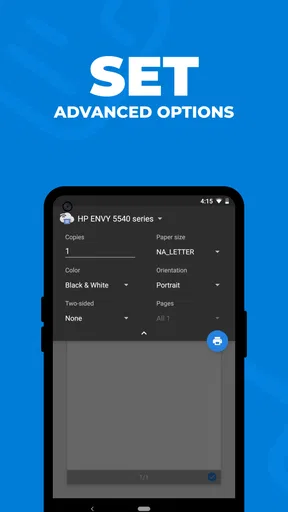
For printing, the preview deserves a pause even when the job seems simple. It gives you a chance to catch the wrong file, a page you did not mean to include, or a layout that does not look right before using paper and ink. A phone screen can make a page appear readable while small text will be uncomfortable on paper, so I would zoom in on forms and check that the important details are visible. This is a small habit that prevents a surprisingly common kind of reprint.
Integration and Cloud Connectivity
The app seamlessly integrates with cloud services like Google Drive, Dropbox, and iCloud. This is a lifesaver because I can save my scanned documents directly to the cloud, ensuring they’re accessible from anywhere. If you’re like me and tend to misplace things, this feature alone is worth its weight in gold.
Cloud access is most useful when it serves a clear handoff: capture a receipt at home, then retrieve it later from another device, or keep a form available after the paper copy has been filed away. I would still make sure the correct account and folder are selected before saving. A cloud destination can make a document easier to reach, but it can also make it easier to lose track of a file if everything ends up in a crowded default folder.
It is also worth thinking about whether you need a cloud copy at all. For a temporary page that only needs printing once, keeping another copy may add clutter without much benefit. For a warranty receipt or a document you may need when away from home, a saved digital version can be far more useful. The best workflow is the one that leaves the document somewhere you will remember to look.
How it compares with other ways to print or scan
Compared with a printer maker’s own app, a general mobile printing tool can feel more convenient if you use a mixed collection of files and want scanning and printing in one place. A manufacturer’s app may be the better choice when you need printer-specific controls or when this app does not recognize your particular model. I would not assume that one universal app will handle every printer equally well; compatibility is the first thing to test.
For scanning, the built-in camera or a basic photo app can capture a page, but it may leave you to correct framing and appearance yourself. A dedicated flatbed scanner is still preferable for repeated batches, delicate originals, or work where consistent quality matters. This app sits between those options: more organized than taking an unprocessed photo, and more convenient than walking to a scanner for a single receipt or form.
Likewise, sending a file to a computer and printing from there remains a sensible fallback if the phone cannot see the printer or if the document needs careful layout adjustments. I see the app as a shortcut for ordinary jobs, not a reason to discard every established workflow. Keeping a second route available is especially sensible when printing is time-sensitive.
User Experience and Design
Now, let’s chat about the user experience. The app is designed with simplicity in mind. The menu is pretty straightforward, and you can easily switch between printing and scanning modes. The design is sleek, with just the right amount of color to make it visually appealing without being distracting.
One thing that I appreciated is the app’s speed. There’s no lag when switching between tasks, and the printing process is remarkably fast. Plus, you get a preview of documents before printing, which helps avoid those annoying printing mistakes.
That straightforward approach is particularly helpful if you only print now and then and do not want to relearn a complicated interface each time. I would still treat “quick” as different from “automatic”: the app can make the handoff easier, but the printer still needs to be ready, and the document still needs a human check. If you are printing a long or important file, taking a moment to confirm the selection and preview is more useful than rushing through the controls.
Who will get the most from it
I can see this being a good fit for students who occasionally print class materials, families managing forms and notices, and people who want to digitize receipts without buying a separate scanner. It is also useful for someone who already keeps files on a phone and wants a direct way to turn them into paper. The app’s broad appeal is reflected in its 4.5 average from around 55,000 ratings, alongside more than 500,000 installs.
On the other hand, I would skip it as a primary tool if you print in high volumes, need precise control over professional layouts, or routinely scan thick stacks of pages. A desktop print workflow or dedicated scanner can be less fiddly for those jobs. I would also look elsewhere if your printer is not detected after checking the network and compatibility, rather than spending time repeatedly retrying the same connection.
The app is free to install and rated for Everyone, which makes it easy to try for ordinary household use. There are in-app purchases ranging from $7.99 to $69.99 per item, so I would review any purchase screen carefully and decide whether paid options match how often I actually print or scan. The current version is 2.2.40, and it requires Android 7.0 or later. That Android requirement is worth checking before planning to use an older device as a dedicated document tool.
Security and Privacy
In today’s digital age, security is paramount. The app ensures that your documents are safe with encryption features that protect your files during transfer. This extra layer of security gives peace of mind, especially if you’re dealing with sensitive documents.
Even with that reassurance, I would keep my own habits careful: preview the destination before saving, avoid sending private pages to folders other people can access, and remove temporary copies when I no longer need them. A convenient scanner makes it easy to create duplicates, so a little attention to where those files go matters just as much as getting a clear image.
Final Thoughts
Overall, the Smart Printer App & Scanner is a fantastic tool for anyone looking to streamline their printing and scanning tasks. It’s user-friendly, packed with features, and integrates well with other services. Whether you’re a student, a professional, or just someone who loves staying organized, this app is definitely worth checking out.
So, if you’re tired of the old-school way of handling documents, give this app a try. Trust me, you’ll wonder how you ever managed without it!
My recommendation is more measured: try it first with an unimportant page, confirm that your printer appears, and see whether the scan-to-save routine fits the places you already keep files. If the connection works and your needs are occasional, it can make the phone a handy bridge between paper, digital documents, and a home printer. If you need dependable batch work or exact control, keep a dedicated printer or scanner workflow in your toolkit instead.
Pros
- Easy setup with intuitive interface.
- Supports a wide range of printer models.
- High-quality scan resolution.
- Automatic document formatting.
- Secure cloud storage integration.
Cons
- In-app purchases can be pricey.
- Occasional connectivity issues.
- Limited free version features.
- Requires constant updates.
- Ads can be intrusive in free version.
FAQs for Smart Printer App & Scanner
What devices are compatible with the Smart Printer App & Scanner?
The Smart Printer App & Scanner is compatible with both Android and iOS devices. It supports a wide range of smartphones and tablets running on Android version 5.0 and above, and iOS 11.0 or later. Ensure your device meets these requirements for optimal performance.
Does the Smart Printer App & Scanner support wireless printing?
Yes, the app supports wireless printing. It connects seamlessly to Wi-Fi-enabled printers, allowing you to print documents and images directly from your device without needing any physical connections. Make sure your printer is compatible and connected to the same network as your device.
Can I scan multiple pages into a single document using this app?
Absolutely! The Smart Printer App & Scanner allows you to scan multiple pages and combine them into a single PDF document. This feature is particularly useful for managing reports or lengthy documents, providing a smooth and efficient way to handle multiple pages.
Is there a subscription required to access all features of the app?
The app offers both a free version with basic features and a premium subscription model. The premium version unlocks advanced features such as high-resolution scanning, cloud storage integration, and ad-free usage. Users can choose a monthly or yearly subscription based on their needs.
How secure are my documents when using the Smart Printer App & Scanner?
The app prioritizes your privacy and security. It uses encryption protocols to ensure that your scanned documents and print jobs are secure. Additionally, it does not store your documents on external servers without your consent, giving you control over your data.


